Originally published on DEV
✌️5 AI Document Parsing Tools That Actually Work 🚀🔥
SAShrijal Acharya·December 12, 2025 (9 months ago)
138 reactions10 comments
ai
opensource
rag
productivity
Working with real world documents is still pain. PDFs, invoices, random exports from legacy tools. Half the work is just getting them into a clean, structured format your models can use. 😕
This post is about that first step. The one that usually gets ignored in demos and tutorials. Parsing and structuring the documents.
The tools here handle OCR, layout, tables, forms and file format so you can focus on the logic around them.
I am walking through a few I actually like using, with short code snippets you can drop straight into your own projects.
So, let's begin. 🚀

1. Tensorlake
💡 Document Ingestion API plus a serverless runtime for agentic data workflows
Tensorlake gives you two big things in one place:
- A Document Ingestion API that turns messy files into clean markdown or structured JSON
- A serverless platform to run agentic workflows on top of that data
You can send PDFs, Office files, images or raw text and get back well structured content with preserved layout. Long story short, you can treat it as a Document Ingestion API that handles PDFs, Office files, scans and images, then add agent style applications on top using their serverless runtime.
So, instead of handling OCR and background jobs with retry logic, you get one single platform that parses, chunks, classifies and then feeds the results into the agent or tools.
🤔 Is it for you?
If you are building invoice extractors, contract analyzers, or any complex data ingestion or agents that need to actually read documents, Tensorlake sits right in the middle of your stack as the ingestion and workflow layer.
Features
- Multi format parsing: Parse PDFs, Office docs, spreadsheets, presentations, images and raw text to markdown or JSON.
- Layout aware output: Preserves tables, sections and reading order so your RAG or search stays aligned with the original document, which many other tools miss.
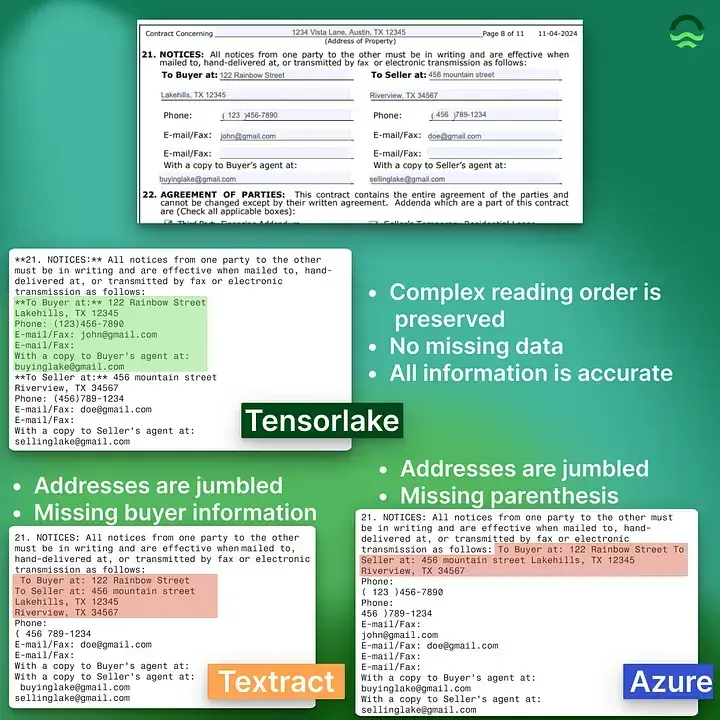
- Schema based extraction: Use JSON Schema or Pydantic models to pull out only the fields you care about.
- Agentic runtime: Decorate Python functions, run them in sandboxes and let Tensorlake handle scaling, retries and state.
And many more...
Now, let's go through a quick code example of some common use cases.
Code Example: From PDF to markdown
First, install the SDK and use the DocumentAI client to upload a PDF, start a parse job and stream the markdown chunks once parsing is done.
pip install tensorlakeNow, to extract the text from a PDF, you can do something like:
from tensorlake.documentai import DocumentAI, ParseStatus

doc_ai = DocumentAI(api_key="your-api-key")

# Upload and parse document
file_id = doc_ai.upload("/path/to/document.pdf")

# Start parsing
parse_id = doc_ai.parse(file_id)

# Wait until parsing is complete
result = doc_ai.wait_for_completion(parse_id)

if result.status == ParseStatus.SUCCESSFUL:
    # Each chunk is a piece of clean markdown
    for chunk in result.chunks:
        print(chunk.content)
This is the basic flow you would use in a backend job that takes uploaded PDFs and turns them into LLM friendly text for something like RAG or search.
Once you have the chunks, you can push them straight into a vector store or a database.
You can have more control over parsing, like using structured parsing, which you can find here: Structured Extraction. I leave it up to you to explore more about this.
Code Example: Tiny agentic app on the Tensorlake runtime
To run a small agentic app on top of Tensorlake, it's as simple as:
import os
from agents import Agent, Runner
from agents.tool import WebSearchTool, function_tool
from tensorlake.applications import application, function, run_local_application, Image

# Container image with the dependencies the function needs
FUNCTION_CONTAINER_IMAGE = Image(
    base_image="python:3.11-slim",
    name="city_guide_image",
).run("pip install openai openai-agents")

@function_tool
@function(
    description="Gets the weather for a city",
    secrets=["OPENAI_API_KEY"],
    image=FUNCTION_CONTAINER_IMAGE,
)
def get_weather_tool(city: str) -> str:
    agent = Agent(
        name="Weather Reporter",
        instructions="Use web search to find current weather in the city",
        tools=[WebSearchTool()],
    )
    result = Runner.run_sync(agent, f"City: {city}")
    return result.final_output.strip()

@application(tags={"type": "example", "use_case": "city_guide"})
@function(
    description="Creates a simple city guide",
    secrets=["OPENAI_API_KEY"],
    image=FUNCTION_CONTAINER_IMAGE,
)
def city_guide_app(city: str) -> str:
    agent = Agent(
        name="Guide Creator",
        instructions="Make a friendly city guide that includes the current temperature",
        tools=[get_weather_tool],
    )
    result = Runner.run_sync(agent, f"City: {city}")
    return result.final_output.strip()

if __name__ == "__main__":
    city = "Paris"

    if not os.environ.get("OPENAI_API_KEY"):
        print("Error: OPENAI_API_KEY is not set")
        raise SystemExit(1)

    request = run_local_application("city_guide_app", city)
    response = request.output()
    print(response)
This above code creates a city guide application using OpenAI Agents with tool calls. I'm not going to explain the code here, as the blog will get unnecessarily longer.
You can find the explanation for this code in their GitHub README.
Deploying and running on Tensorlake Cloud
To run the application on Tensorlake Cloud, it first needs to be deployed.
- Set
TENSORLAKE_API_KEYin your shell session:
export TENSORLAKE_API_KEY="Paste your API key here"- Set
OPENAI_API_KEYin your Tensorlake Secrets so that your application can make calls to OpenAI:
tensorlake secrets set OPENAI_API_KEY "Paste your API key here"- Deploy the application to Tensorlake Cloud:
tensorlake deploy examples/readme_example/city_guide.py- Run the remote test script found in
examples/readme_example/test_remote_app.py:
from tensorlake.applications import run_remote_application

city = "San Francisco"

# Run the application remotely
request = run_remote_application("city_guide_app", city)
print(f"Request ID: {request.id}")

# Get the output
response = request.output()
print(response)- The application will execute on Tensorlake Cloud, with each function running in its own isolated sandbox.
To put it short, Tensorlake takes care of spinning up containers, injecting secrets and keeping the function durable so it can retry tool calls without you building your own queue system.
Here's a quick Tensorlake document ingestion demo to see it in action working with a complex document. 👇
2. Extend
💡 Document processing APIs built for agents with a confidence score and a citation on every field
Extend is a YC W23 company that builds document processing infrastructure for developers and AI agents. You send it a PDF, image, spreadsheet or Office file, and you get back either clean markdown or JSON exactly like the schema you asked for.
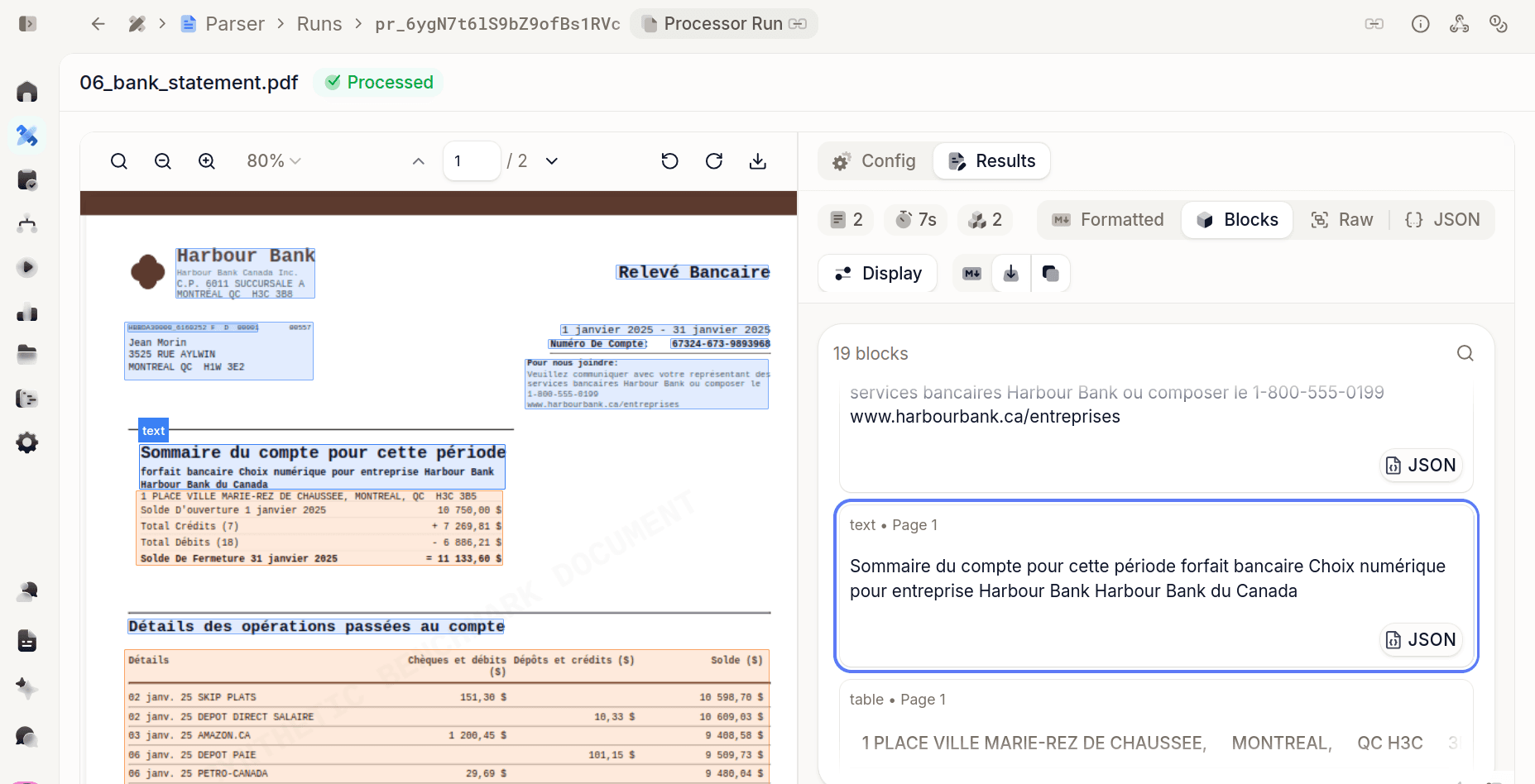
The bit that made me pay attention: every extracted field comes back with two confidence scores and a bounding-box citation pointing to where on the page it came from.
It is used in production by Brex, Checkr, Opendoor and Flatiron Health, and handles the stuff that usually breaks pipelines: tables split across pages, 100+ page files, handwriting, signatures, checkboxes drawn ten different ways.
🤔 Is it for you?
If the output of your document pipeline is going into a system that acts on it (AP, claims, underwriting, onboarding), and a made-up value is worse than a missing one, this is the tool on this list I'd reach for. If you just need markdown for RAG, it does that too.
Features
- One platform, five operations: Parse, Extract, Classify, Split and Edit (fill and detect forms), chainable into Workflows with routing, validation and versioning.
- Confidence and citations on every field:
logprobsConfidencefrom the model,ocrConfidencefrom the text, and a polygon back to the source page. Route low-confidence fields to review automatically.
- Schema-less extraction: Skip the schema and Extend infers one from the document.
- Review Agent: An optional multi-pass checker that flags likely errors in the output before your users find them.
- Composer: Upload sample docs and it tunes your schema and prompts in the background until accuracy converges.
- Built for coding agents: Hosted MCP server, a CLI with an auto-generated agent skill, and a platform context file you can drop into your repo as
CLAUDE.mdorAGENTS.md. Official SDKs for Python, TypeScript, Java and Go.
And many more...
Now, let's go through a quick code example of some common use cases.
Code Example: From PDF to markdown
Install the SDK and set your API key. The client reads EXTEND_API_KEY from the environment so you never paste it into code.
pip install extend-ai
export EXTEND_API_KEY="your_api_key_here"
Parsing is a single synchronous call. It runs OCR, layout detection, table extraction and chunking, and hands you back a populated ParseRun.
from extend_ai import Extend

client = Extend()

# Upload your own file, or pass {"url": "..."} for a hosted one
with open("bank_statement.pdf", "rb") as f:
    uploaded = client.files.upload(file=f)

response = client.parse(file={"id": uploaded.id})
print(response.status)  # PROCESSED

# Each chunk is clean markdown plus typed, layout-aware blocks
for chunk in response.output.chunks:
    print(chunk.content)
    for block in chunk.blocks:
        print(block.type, block.metadata.page.number)  # text, table, figure, key_value ...
By default you get one chunk per page. Pass config={"chunkingStrategy": {"type": "section"}} and it groups content into heading-aware sections instead, which is usually what you want for RAG.
Code Example: Schema extraction with confidence routing
This is the part I actually care about. Define a JSON Schema, get JSON back in that exact shape.
from extend_ai import Extend

client = Extend()

schema = {
    "type": "object",
    "properties": {
        "invoice_number": {"type": ["string", "null"]},
        "vendor_name": {"type": ["string", "null"]},
        "invoice_date": {"type": ["string", "null"], "extend:type": "date"},
        "total": {"type": ["number", "null"], "description": "Grand total including tax"},
        "line_items": {
            "type": "array",
            "items": {
                "type": "object",
                "properties": {
                    "description": {"type": ["string", "null"]},
                    "quantity": {"type": ["number", "null"]},
                    "amount": {"type": ["number", "null"], "description": "Line total excluding tax"},
                },
            },
        },
    },
}

with open("invoice.pdf", "rb") as f:
    uploaded = client.files.upload(file=f)

result = client.extract(
    file={"id": uploaded.id},
    config={
        "schema": schema,
        "extractionRules": "If multiple totals appear, use the grand total. Dates in ISO 8601.",
        "advancedOptions": {"citationsEnabled": True},
    },
)

value = result.output.value
print(value["vendor_name"], value["total"])

# Trust the confident fields, send the rest to a human
for field, meta in result.output.metadata.items():
    if (meta.ocr_confidence or 0) < 0.9:
        print(f"Low confidence on {field} -> route to review")
What is happening here:
- Every scalar is
["type", "null"]so the model is allowed to say "not on the page" instead of inventing a value. In my benchmark this is exactly what Extend did on the trap fields, and it's why it never hallucinated. extend:type: "date"tells Extend to normalise the field, so you don't get15/01/2019one day andJan 15, 2019the next.extractionRulesis plain-language business logic.output.metadatais keyed by field path (line_items[0].amountworks), so the confidence loop covers table cells too.
💁 Heads up on billing: an extract run also runs a parse underneath, and the response reports both. Read
usage.totalCredits, notusage.credits, or you'll under-count by about 40%.
For big files, swap client.extract(...) for the async client.extract_runs.create(...) and poll or use a webhook. Python, TypeScript and Java SDKs ship a create_and_poll helper so you don't have to write the loop.
Bonus: let your coding agent do the integration
Extend is the only document API I tested that ships everything a coding agent needs. If you're using Claude Code, Cursor or Codex:
# Platform context file, installed as a skill in your repo
npx skills add extend-hq/extend-agent-plugin --skill extend-api

# Or the CLI with its own auto-generated agent skill
curl -fsSL https://extend.ai/install.sh | sh && extend setup
There's also a hosted MCP server at https://mcp.extend.ai/mcp that exposes the whole platform as tools with OAuth sign-in, no API key needed.
The context file has one line that explicitly warns that REST paths and SDK method names differ (POST /extract_runs is client.extract_runs.create()). That one sentence saved me the guess-and-check loop I hit on two other SDKs. Small thing. Real time saved.

Here's a quick intro. 👇
3. LandingAI ADE
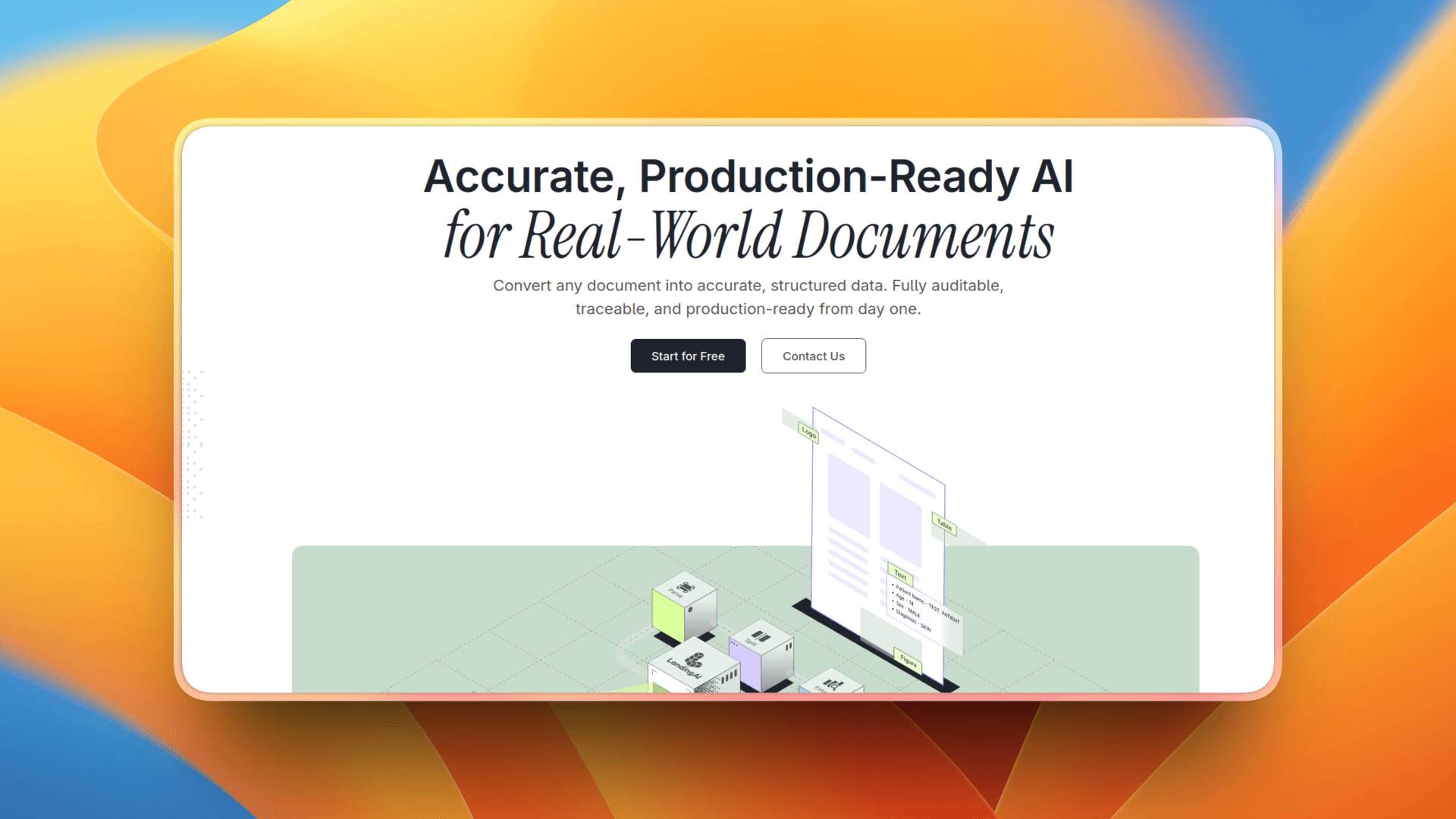
Agentic Document Extraction (ADE) from LandingAI is a set of modular APIs that converts PDFs, scanned images, spreadsheets, and Office files into structured, source-cited JSON.
Every parsed element includes the page and bounding box where it was found, making the output easy to verify, cite, and pass into downstream agent workflows.
Parsing runs on DPT-3, LandingAI's latest document pre-trained transformer. The DPT-3 Pro model is the default through the /v2/ade/parse endpoint.
The platform provides five operations:
ADE Parse returns clean markdown and a hierarchical JSON tree of pages and elements, with grounding metadata on every node.
ADE Extract runs a JSON Schema over the parsed markdown and returns validated fields with per-field confidence.
ADE Classify assigns document classes at the page level.
ADE Section returns a hierarchical table of contents for long, structured documents.
ADE Split separates multi-document files into individual documents by class.
Features
- Layout-aware parsing preserves tables, forms, figures, and complex layouts across scanned, multilingual, and dense documents.
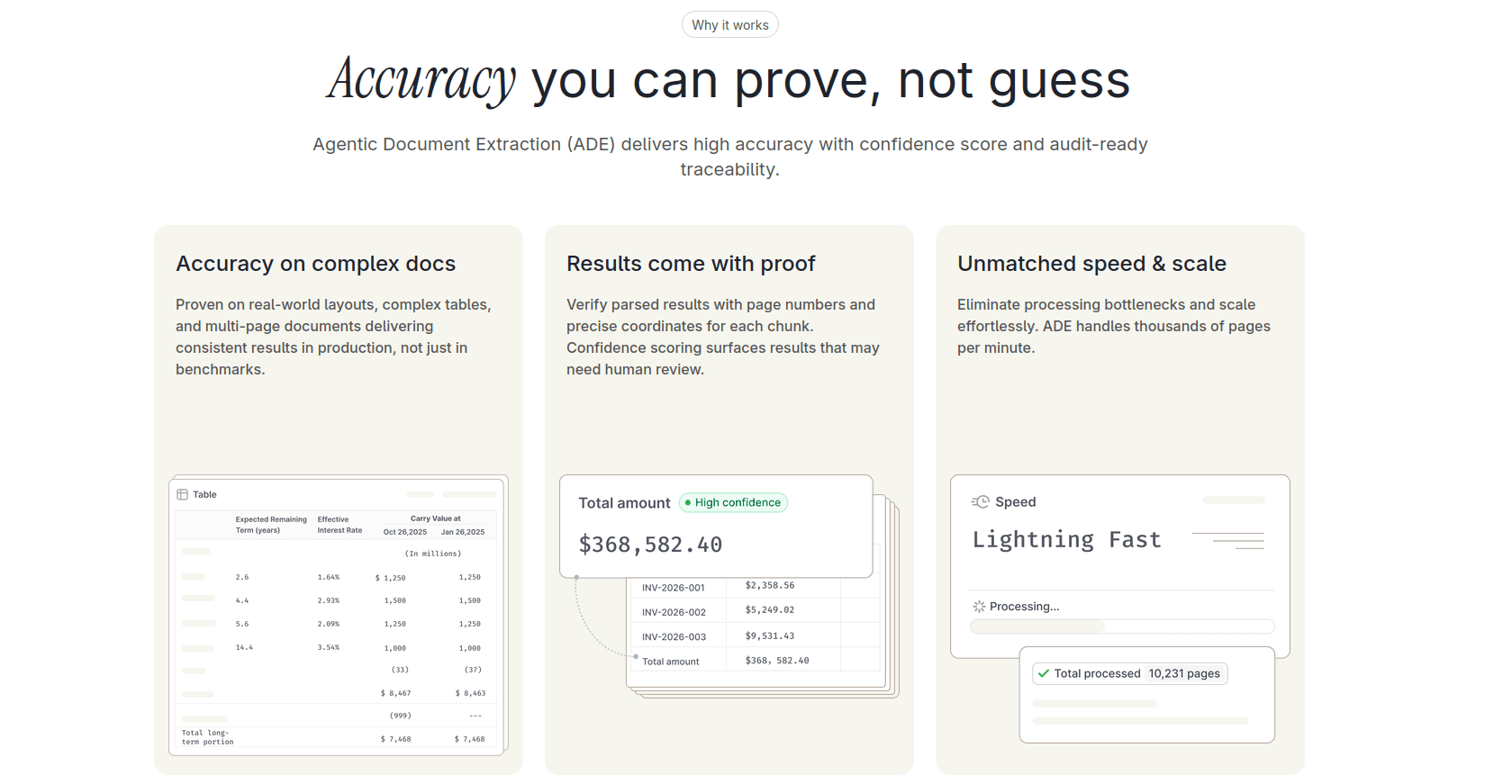
- Every element includes a page number and bounding box coordinates, giving downstream agents audit-ready citations for every surfaced value.
- Schema-based extraction with JSON Schema or Pydantic returns validated fields with per-field confidence.
- DPT-3 adds hierarchical parsing and line-level grounding, preserving document structure while providing citations down to the line.
- Async Parse Jobs support up to 6,000 pages or 1 GB per request for long-form documents.
Enterprise and Pricing
- SOC 2, HIPAA, and GDPR compliance across the platform.
- Zero Data Retention is available on Team and Enterprise plans.
- SSO through SAML 2.0 and OIDC is available on the Enterprise plan.
- VPC and on-premise deployment are available on the Enterprise plan.
- The Explore plan uses pay-as-you-go pricing and includes 1,000 free credits to start. The Team plan costs $250 per month.
Client Libraries, CLI, and MCP
LandingAI provides official Python and TypeScript client libraries, both published as landingai-ade.
Both include fully typed requests, Pydantic response models in Python and typed models in TypeScript, synchronous and asynchronous clients, automatic retries with exponential backoff, and Parse Jobs with a built-in wait helper for large documents.
LandingAI also provides an official ADE CLI for parsing documents and extracting schema-shaped data from the terminal.
An ADE MCP Server lets coding assistants such as Cursor and VS Code explore endpoints and test requests during integration.
Code example: parsing a PDF with the Python library
Install the library from PyPI:
pip install landingai-adeThen parse a document and inspect the structured output:
from pathlib import Path
from landingai_ade import LandingAIADE

# Reads your key from the VISION_AGENT_API_KEY environment variable
client = LandingAIADE()

parsed = client.v2.parse(
    document=Path("path/to/document.pdf"),
    model="dpt-3-pro-latest",
)

# Clean markdown, ready to drop into a vector store
print(parsed.markdown)

# Number of pages processed
print(parsed.metadata.page_count)

# parsed.structure is a typed tree of pages and elements, and every node
# carries grounding: the page, a character range into the markdown, and a
# bounding box, so each value can be traced back to its source.
Full API reference, TypeScript examples, and MCP Server setup are available at docs.landing.ai.
Walkthrough of ADE in action:
3. Unstructured
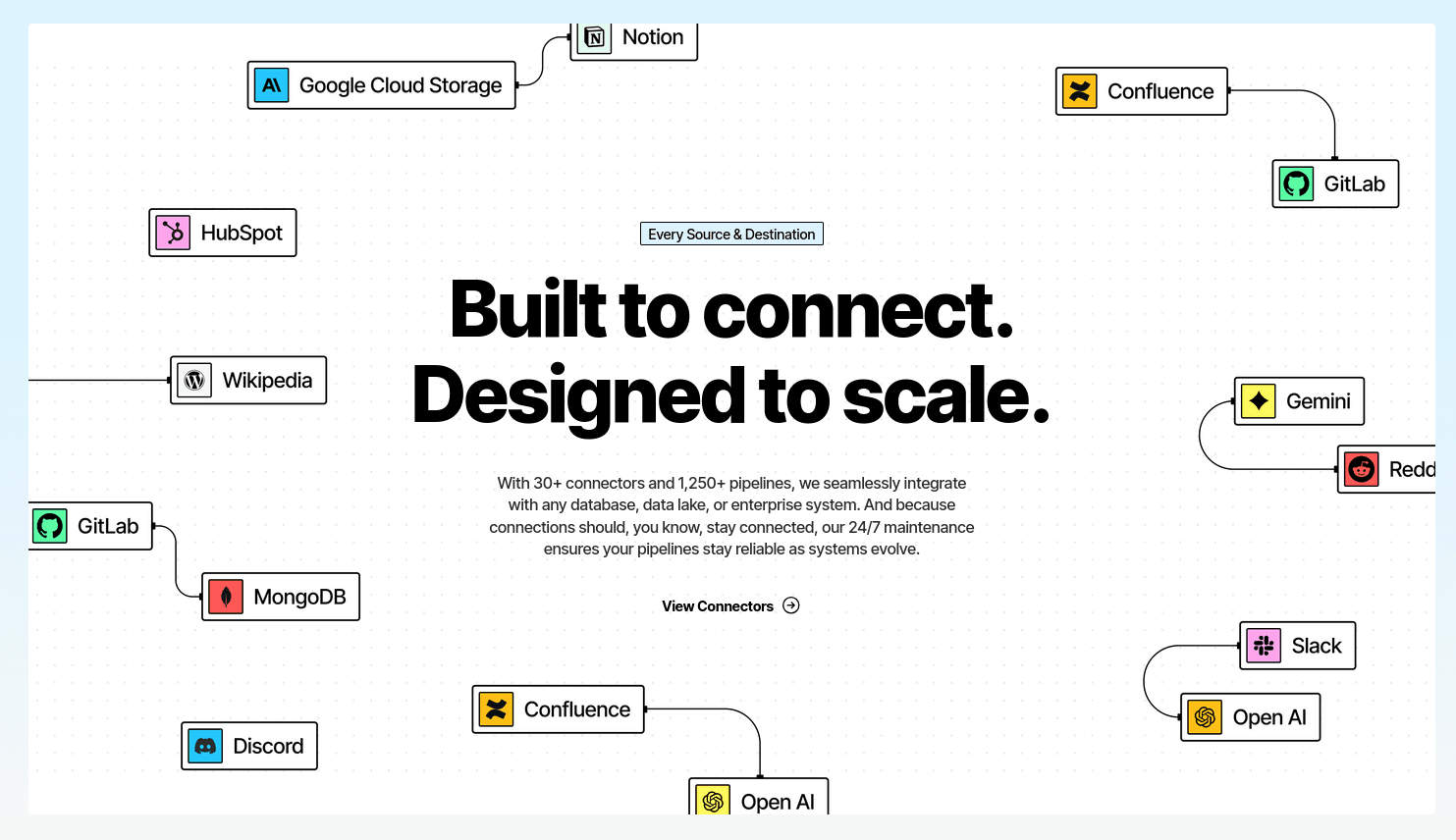
Unstructured gives you an open source library plus a managed platform to turn unstructured content into structured data for LLM apps. It partitions PDFs, slides, HTML, Office files and images into a standard set of elements that downstream tools can easily consume.
On top of that, the ingest layer adds connectors, chunking and embeddings so you can build full ETL style pipelines around your document sources.
Features
- One partition API autodetects file type and routes to the right parser for you.
- LLM friendly outputs structured elements with text, metadata and coordinates when needed.
- Source and destination connectors GitHub, S3 and more via the Ingest CLI and Python library.
- Hosted Partition Endpoint offloads compute to their API when you want better models or scale.
Code Example: Quickstart with partition
This is the core pattern you will see in most examples, and it is enough to plug into a RAG pipeline.
from unstructured.partition.auto import partition

# Read and partition a document
elements = partition("example-docs/layout-parser-paper.pdf")

# Inspect a few elements
for el in elements[:5]:
    print(repr(el.category), "->", str(el)[:80], "...")
You end up with a list of elements that know their category, which makes it easy to filter for titles, paragraphs or tables before you use it further.
Code Example: Batch processing with Ingest CLI
For real projects you usually need to process many files at once and save the outputs somewhere. It comes with an ingest CLI and is built for exactly that.
# Chunk and partition an entire folder of files
unstructured-ingest \
  local \
    --input-path $LOCAL_FILE_INPUT_DIR \
    --output-dir $LOCAL_FILE_OUTPUT_DIR \
    --chunking-strategy by_title \
    --chunk-max-characters 1024 \
    --partition-by-api \
    --api-key $UNSTRUCTURED_API_KEY \
    --partition-endpoint $UNSTRUCTURED_API_URL \
    --strategy hi_res
This runs a full pipeline that reads documents from LOCAL_FILE_INPUT_DIR, partitions them with the hi_res strategy, chunks them by title and writes the structured outputs into your output directory. From there, you can index or analyze them however you like.
Here's a quick API quickstart to get an idea. 👇
4. Amazon Textract
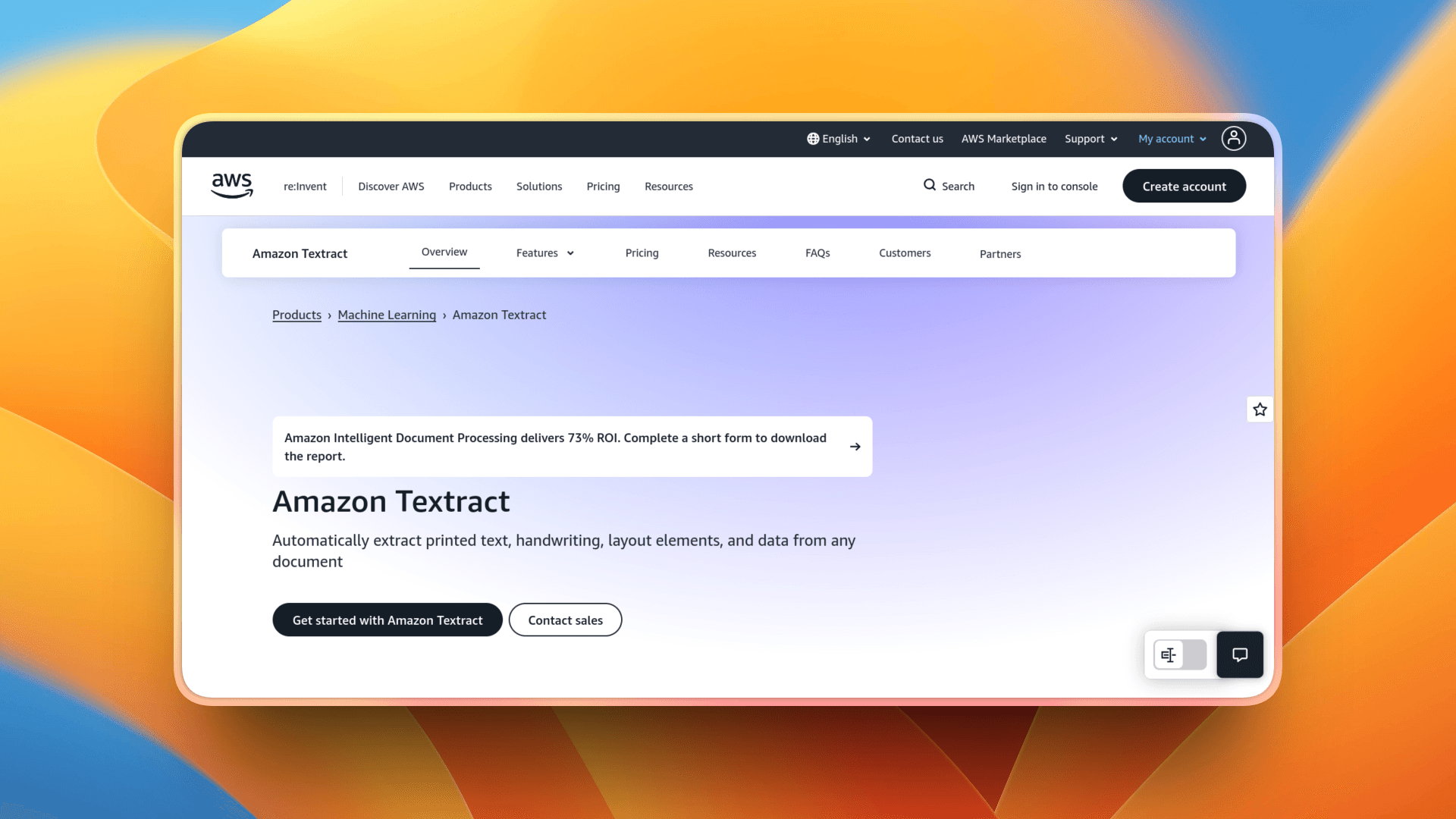
Amazon Textract is AWS’s managed OCR and document analysis service that pulls text, handwriting, layout and structured data out of scanned documents and PDFs.
It runs inside your AWS account, plugs into services like S3, Lambda, SNS and SQS, and is used at scale by companies like PayTM for document workflows.
Features
- Structured extraction pulls data from tables, forms and key value pairs, not just plain text.
- Layout and handwriting support detects paragraphs, titles, layout elements and handwritten text in scans.
- Works naturally with S3, Lambda, SNS, SQS and other AWS services.
- Sync and async APIs low latency calls for single pages plus batch jobs for large multipage docs.
- Security and compliance encryption, IAM and regional controls for regulated workloads.
Code Example: Detect text from a local file
This is the basic pattern if you just want the text out of a document. You read the file as bytes, call detect_document_text and print the lines Textract finds.
import boto3

textract = boto3.client("textract")  # uses your AWS credentials

file_path = "sample-doc.png"  # can be any image format

with open(file_path, "rb") as f:
    image_bytes = f.read()

response = textract.detect_document_text(
    Document={"Bytes": image_bytes}
)

for block in response["Blocks"]:
    if block["BlockType"] == "LINE":
        print(block["Text"])
What is happening here:
- Textract analyzes the image or PDF and returns a list of Blocks that represent words, lines and other elements.
- You filter for blocks of type LINE and print their Text, which is enough for many basic OCR use cases or as a first step before sending text into an LLM.
Code Example: Extract tables and forms from S3
To pull structured data from forms and tables, you use analyze_document with the FORMS and TABLES feature types and point Textract at a document in S3.
import boto3

textract = boto3.client("textract")

bucket_name = "my-doc-bucket"
object_key = "invoices/invoice-001.png"

response = textract.analyze_document(
    Document={
        "S3Object": {
            "Bucket": bucket_name,
            "Name": object_key,
        }
    },
    FeatureTypes=["FORMS", "TABLES"],
)

print(f"Found {len(response['Blocks'])} blocks")

# Quick peek at found tables
for block in response["Blocks"]:
    if block["BlockType"] == "TABLE":
        print("Detected a table with Id:", block["Id"])
There is a lot of other complex stuff that you can do with Textract. For more details, check out the Textract documentation.
In production you usually wire this up with S3 triggers and Lambda so new documents are picked up and processed by themselves.
Here's a quick intro to Amazon Textract. 👇
Conclusion
If you think of any other handy AI tools that I haven't covered in this article, do share them in the comments section below. ✌️
So, that is it for this article. Thank you so much for reading! 🎉🫡